SQL Server : Find out Nth highest salary of employee using RANK() or DENSE_RANK() functions in SQL Server

This article is going to hash out some interesting question which is also one of the favorite questions asked in SQL Server interviews.  Hope, you guys got it. J
Yeap, you are right that is “Find out Nth  highest salary of employee”.
In the interviews, we used to get many answers for this questions like using CURSORS, Sub Query etc.,  which is involved lot of SQL statements with low performance.
This can be achieved very easily by using RANK()or DENSE_RANK()functions which were first introduced in SQL Server 2005.  It may be old function but it’s worth of sharing. J
Let us create sample table with few records for this demo.
CREATE TABLE [DBO].[Employee]
(
      [EmpCode]   INT   IDENTITY    (1,1),
      [EmpName]   VARCHAR(100)      NOT NULL,
      [Salary]    NUMERIC(10,2)     NOT NULL,
      [DeptName]  VARCHAR(100)      NOT NULL
)
GO

INSERT INTO [DBO].[Employee] ([EmpName],[Salary],[DeptName]) VALUES (‘Priya’,60000,‘IT’);
INSERT INTO [DBO].[Employee] ([EmpName],[Salary],[DeptName]) VALUES (‘Chaitu’,55000,‘IT’);
INSERT INTO [DBO].[Employee] ([EmpName],[Salary],[DeptName]) VALUES (‘Praveen’,35000,‘IT’);
INSERT INTO [DBO].[Employee] ([EmpName],[Salary],[DeptName]) VALUES (‘Sathish’,57000,‘IT’);
INSERT INTO [DBO].[Employee] ([EmpName],[Salary],[DeptName]) VALUES (‘Ramana’,62000,‘IT’);
INSERT INTO [DBO].[Employee] ([EmpName],[Salary],[DeptName]) VALUES (‘Kiran’,75000,‘IT’);
INSERT INTO [DBO].[Employee] ([EmpName],[Salary],[DeptName]) VALUES (‘Krishna’,78534,‘IT’);
INSERT INTO [DBO].[Employee] ([EmpName],[Salary],[DeptName]) VALUES (‘Sravani’,23000,‘IT’);
INSERT INTO [DBO].[Employee] ([EmpName],[Salary],[DeptName]) VALUES (‘Mahesh’,23500,‘IT’);
INSERT INTO [DBO].[Employee] ([EmpName],[Salary],[DeptName]) VALUES (‘Raman’,45000,‘Accounts’);
INSERT INTO [DBO].[Employee] ([EmpName],[Salary],[DeptName]) VALUES (‘Raghu’,35250,‘Accounts’);
INSERT INTO [DBO].[Employee] ([EmpName],[Salary],[DeptName]) VALUES (‘Noha’,27000,‘Sales’);
INSERT INTO [DBO].[Employee] ([EmpName],[Salary],[DeptName]) VALUES (‘Sushma’,29500,‘Sales’);
INSERT INTO [DBO].[Employee] ([EmpName],[Salary],[DeptName]) VALUES (‘Sekhar’,30000,‘Sales’);
INSERT INTO [DBO].[Employee] ([EmpName],[Salary],[DeptName]) VALUES (‘Ravi’,30000,‘Sales’);
INSERT INTO [DBO].[Employee] ([EmpName],[Salary],[DeptName]) VALUES (‘Harini’,35000,‘Sales’);
Hope, successfully the above statements were executed and the records are inserted into [Employee]table.
Let us execute the below query to check the inserted records:
SELECT
      [EmpCode],[EmpName],[Salary]
FROM
      [DBO].[Employee] WITH (NOLOCK)
GO

The output would be as shown below :
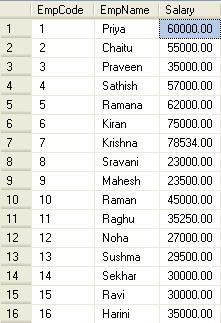
Now, the question is to display 4th highest salary of employee. Before that let us execute and find manually what is the 4th highest salary in the table using the following query. 
SELECT
      [EmpCode],[EmpName],[Salary]
FROM
      [DBO].[Employee] WITH (NOLOCK)
ORDER BY
      [Salary] DESC
GO

The output would be as shown below :
Now, let us find out the 4th highest salary of employee using RANK()function:
As we have seen from the above output, the fourth highest salary is “60000” of employee “Priya”, let us execute the below SQL statement and confirm whether it  gives the same output.

SELECT
      [EmpCode],[EmpName],[Salary]
FROM(     SELECT
      [EmpCode],[EmpName],[Salary]
    ,RANK() OVER (ORDER BY [Salary] DESC) AS [Highest]
FROM
      [DBO].[Employee] WITH (NOLOCK)
) AS High
WHERE
      [Highest] = 4
GO

Yeap, this is what we expected right. J
Let me add few more records for other scenarios where we may not use RANK()function, for this example let us insert few more records.
INSERT INTO [DBO].[Employee] ([EmpName],[Salary],[DeptName]) VALUES (‘Yash’,60000,‘IT’);
INSERT INTO [DBO].[Employee] ([EmpName],[Salary],[DeptName]) VALUES (‘Bhaskar’,60000,‘Accounts’);
INSERT INTO [DBO].[Employee] ([EmpName],[Salary],[DeptName]) VALUES (‘Swetha’,75000,‘IT’);
INSERT INTO [DBO].[Employee] ([EmpName],[Salary],[DeptName]) VALUES (‘Shailaja’,45000,‘Sales’);
Just execute the below query to check the inserted records:

SELECT
      [EmpCode],[EmpName],[Salary]
FROM
      [DBO].[Employee] WITH (NOLOCK)
GO
Now, again the question is to display 4th highest salary of employee. Before that let us execute and find manually what is the 4th highest salary in the table using the following query.
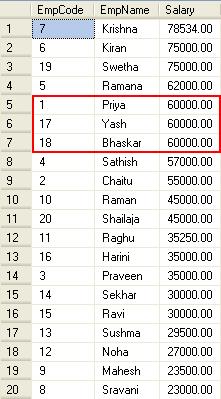
As we know the 4th highest salary is “60000”and there are three employees having the same salary. Let us execute the above query and check the result now.

SELECT
      [EmpCode],[EmpName],[Salary]
FROM(     SELECT
      [EmpCode],[EmpName],[Salary]
    ,RANK() OVER (ORDER BY [Salary] DESC) AS [Highest]
FROM
      [DBO].[Employee] WITH (NOLOCK)
) AS High
WHERE
      [Highest] = 4
GO

The output would not be as we expected. L
Let us execute the same query with including [Highest] column in the SELECT statement.
SELECT
      [EmpCode],[EmpName],[Salary],[Highest]
FROM
(    
SELECT
      [EmpCode],[EmpName],[Salary]
    ,RANK() OVER (ORDER BY [Salary] DESC) AS [Highest]
FROM
      [DBO].[Employee] WITH (NOLOCK)
) AS High
GO
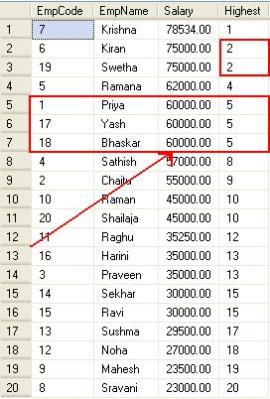
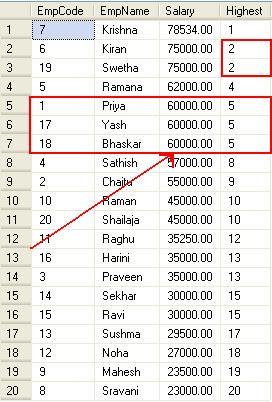
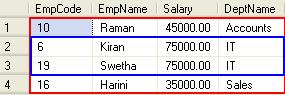
From the above query output, we can understand that “60000” salary is went to 5th position, It’s because If two or more rows tie for a rank, each tied rows receives the same rank.

Also, you can see, it’s skipped the 3rd position because there are 2 guys in 2nd position.
I know what you are thinking, you do not want to skip any position even in tied situation. Am I right?  J
Yeap, For this kind of situation we can go for DENSE_RANK()function.
Let us execute the same query with replacing DENSE_RANK() function instead of  RANK().
SELECT
      [EmpCode],[EmpName],[Salary],[Highest]
FROM
(    
SELECT
      [EmpCode],[EmpName],[Salary]
    , DENSE_RANK() OVER (ORDER BY [Salary] DESC) AS [Highest]
FROM
      [DBO].[Employee] WITH (NOLOCK)
) AS High
GO
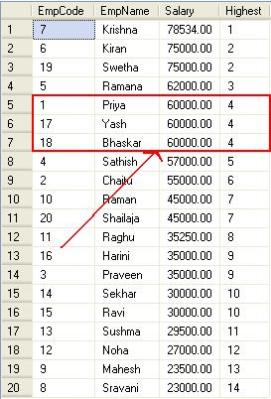
From the above query output, you can understand even the values are tied, it is giving rank without any gaps.
Now, let us execute the below statement to find again the 4th highest though we know it is  “60000”.  
SELECT
      [EmpCode],[EmpName],[Salary]
FROM

(     SELECT
      [EmpCode],[EmpName],[Salary]
    , DENSE_RANK() OVER (ORDER BY [Salary] DESC) AS [Highest]
FROM
      [DBO].[Employee] WITH (NOLOCK)
) AS High
WHERE
      [Highest] = 4
GO

Yeap, we got the same result as we expected. J
The same query can be modified slightly , so that we can identify the Nth  highest salary of employee.
The below query will give us the 2nd highest salary of employee. If you want, you can change the value and execute. J
DECLARE @iHightest      INT
SET @iHightest = 2
SELECT
      [EmpCode],[EmpName],[Salary]
FROM
(    
SELECT
      [EmpCode],[EmpName],[Salary]
    , DENSE_RANK() OVER (ORDER BY [Salary] DESC) AS [Highest]
FROM
      [DBO].[Employee] WITH (NOLOCK)
) AS High
WHERE
      [Highest] = @iHightest
GO
The output would be :

Sometime, we may need to find out  Nth  highest salary of each department. Here, we go. J
DECLARE @iHightest      INT
SET @iHightest = 2
SELECT
      [EmpCode],[EmpName],[Salary],[DeptName]
FROM
(    
SELECT
      [EmpCode],[EmpName],[Salary],[DeptName]
    , DENSE_RANK() OVER (PARTITION BY [DeptName] ORDER BY [Salary] DESC) AS [Highest]
FROM
      [DBO].[Employee] WITH (NOLOCK)
) AS High
WHERE
      [Highest] = @iHightest
ORDER BY
[DeptName]
GO
The output would be :

From the above result, we could get the 2nd highest salary for each department. Have you noticed that in the SQL statement I have used PARTITION BY clause
Which divides the result set produced by the FROM clause into partitions to which the DENSE_RANK()function is applied. 
Hope, you have enjoyed reading this article and share your comments. J
Note :
  1. RANK()or DENSE_RANK()will work in SQL Server 2005 and above versions.
  2. For more info refer http://msdn.microsoft.com/en-us/library/ms173825

SQL Server : Displaying child records in a single column as CSV format in SQL Server

Yesterday, I was asked by one of my team member, how to display the child records as comma separated values in a single column.

I would like to share the query which I have suggested him as it is often required to display data as a single column,especially data from child tables.

Let us create some sample records for this example:

CREATE TABLE [DBO].[Country]
(
[CountryID] INT IDENTITY(1,1),
[CountryName] VARCHAR(100)

)
GO

CREATE TABLE [DBO].[State]
(
[StateID] INT IDENTITY(1,1),

[StateName] VARCHAR (100),

[CountryID] INT

)
GO

Also, will insert few records into these tables.

INSERT INTO [DBO].[Country] ([CountryName]) VALUES (‘India’),(‘United States’),(‘Australia’)
GO

INSERT INTO [DBO].[State] ([StateName],[CountryID]) VALUES (‘Andhra Pradesh’,1),(‘Tamil Nadu’,1),(‘Maharashtra’,1),(‘Kerala’,1),(‘Karnataka’,1)
GO

INSERT INTO [DBO].[State] ([StateName],[CountryID]) VALUES (‘California’,2),(‘New York’,2),(‘Texas’,2),(‘Washington’,2)
GO

INSERT INTO [DBO].[State] ([StateName],[CountryID]) VALUES (‘New South Wales’,3),(‘Tasmania’,3),(‘Victoria’,3)
GO

First, let us execute the below queries and check the records :

SELECT [CountryID],[CountryName] FROM [DBO].[Country]
GO

SELECT [StateID],[StateName],[CountryID] FROM [DBO].[State]
GO

Hope, the above statements were executed successfully. J

Now, let’s get to the real situation, suppose we need to display state names in CSV format for “India”.

The following query can be used to display the state names in a single column.

SELECT
ISNULL(STUFF(
(

SELECT

‘, ‘ + [StateName]
FROM
(
SELECT
[StateName]
FROM
[DBO].[State]
WHERE
[State].[CountryID] = 1
)
AS [State] FOR XML PATH()
)
,1,1,),) AS [StateName]

GO

The output would be :

The above query satisfying only for single country right?
So, let us write a script to display all the state names for all the countries using correlated sub-query.

SELECT
      [Country].[CountryID],[Country].[CountryName],
      ISNULL(STUFF(
(
SELECT

‘, ‘ + [StateName]
FROM
(
SELECT
[StateName]
FROM
[DBO].[State]
WHERE
[State].[CountryID] = [Country].[CountryID]
)
AS [State] FOR XML PATH()
)
,1,1,),) AS [StateName]
FROM
      [DBO].[Country]
GO

The output would be :

I hope, this article may have helped you to understand, how to display the records in CSV format and also you can find more.

Note:

The above queries will work only in SQL Server 2005 and above versions as ‘FOR XML PATH‘ was introduced in SQL Server 2005.

SQL Server : Capturing multiple IDENTITY values after inserting into SQL Server table

Usually we will have situation where we need to capture IDENTITY values after inserting into table, normally this can be achieved by using SCOPE_IDENTITY(), @@IDENTITY and IDENT_CURRENT() functions.

IDENT_CURRENT: returns the last identity value generated for a specific table in any session and any scope.
@@IDENTITY: returns the last identity value generated for any table in the current session, across all scopes.
SCOPE_IDENTITY : returns the last identity value generated for any table in the current session and the current scope.

The above functions are used to retrieve IDENTITY value for single record inserts.J

But, do you think these functions will satisfy all our requirements? My answer is NO, since they will not support for multiple inserts.

Nothing to worry, we have OUTPUT clause to capture the new IDENTITY values for a batch of inserted records which is explained below:

First, let us create sample table with few records.

CREATE TABLE [DBO].[Employee]
(

[EmployeeID] INT IDENTITY(1,1),
[EmployeeName] VARCHAR(100)
)
GO

INSERT INTO [DBO].[Employee] ([EmployeeName]) VALUES (‘Vamsi Priya’);
INSERT INTO [DBO].[Employee] ([EmployeeName]) VALUES (‘Praveen’);
INSERT INTO [DBO].[Employee] ([EmployeeName]) VALUES (‘Sushma’);
INSERT INTO [DBO].[Employee] ([EmployeeName]) VALUES (‘Radhika’);
INSERT INTO [DBO].[Employee] ([EmployeeName]) VALUES (‘Harini’);
INSERT INTO [DBO].[Employee] ([EmployeeName]) VALUES (‘Chaitanya’);

The same insertion can be done in SQL Server 2008 as below :

INSERT INTO [DBO].[Employee] ([EmployeeName])
VALUES
(‘Vamsi Priya’),(‘Praveen’),(‘Sushma’),(‘Radhika’),(‘Harini’),(‘Chaitanya’)
GO

After inserting the records, let us execute and check what is the last [EmployeeID] using the below query.

SELECT @@IDENTITY
GO

The output would be 6. Still we are not satisfied with the result as we got only last inserted employee id, but not all the IDs which were inserted in the transaction.

This can be achieved using the below query :

Before this let us remove all the records from [Employee] table.

TRUNCATE TABLE [DBO].[Employee]
GO

As we know, TRUNCATE TABLE removes all rows from a table, but the table structure and columns remains. If the table contains an identity column, the counter for that column is reset to the seed value defined for the column.

DECLARE @EMPTABLE TABLE ([EmployeeID] INT,[EmployeeName] VARCHAR(100));

INSERT INTO [DBO].[Employee]
(
[EmployeeName]
)
OUTPUT INSERTED.[EmployeeID],INSERTED.[EmployeeName]
INTO @EMPTABLE ([EmployeeID],[EmployeeName])
SELECT ‘Vamsi Priya’ UNION ALL
SELECT ‘Praveen’     UNION ALL
SELECT ‘Sushma’      UNION ALL
SELECT ‘Radhika’     UNION ALL
SELECT ‘Harini’      UNION ALL
SELECT ‘Chaitanya’
GO

Now, let us see the output :

SELECT [EmployeeID],[EmployeeName] FROM @EMPTABLE
GO

From the above example, you could understand how we can capture the multiple identity values. J

Note :

  1. I have used TABLE variable to capture the records, even TEMP TABLE also be used in place of TABLE variables.
  2. You can use this statement inside your stored procedure and also the result can be used for any other calculations within SP.
  3. This feature is available in SQL Server 2005 and above versions.

SQL Server : Using CASE expression in an ORDER BY clause

Many times, I used to hear the question from my folks that “How can I use CASE in an ORDER BY clause?”

Let me show you, how CASE expression can be used in an ORDER BY clause to determine the sort order of the rows based on a given column value.

Example 1 :

Let us assume that we need to sort [CityName] based on @ORDER variable when we set to 1, the result set should sort by [CityName] in ascending order and @ORDER set to 2 should be in descending order.

Normal result without order by clause would be :

SELECT [CityID],[CityName] FROM [DBO].[City]

I have modified the above statement slightly to make ORDER BY based on the condition which is shown below:

DECLARE @ORDER TINYINT
SET @ORDER = 1
SELECT [CityID],[CityName]
FROM [DBO].[City]
ORDER BY
CASE WHEN @ORDER = 1 THEN [CityName] END ASC,
CASE WHEN @ORDER = 2 THEN [CityName] END DESC

Let us execute the above statement and see the output.

From the above result set, we could identify that the records were sorted by [CityName] in ascending order as @ORDER value is 1.

Now, let us change @ORDER value to 2 (descending order) and see the result.

DECLARE @ORDER TINYINT
SET @ORDER = 2
SELECT [CityID],[CityName]
FROM [DBO].[City]
ORDER BY
CASE WHEN @ORDER = 1 THEN [CityName] END ASC
CASE WHEN @ORDER = 2 THEN [CityName] END DESC
GO

As expected, the result set has been sorted by [CityName] in descending order.

Example 2 :

The same CASE expression can also be used to sort columns based on conditions. See the below example.

DECLARE @ColumnOrder VARCHAR
SET @ColumnOrder = ‘CityName’

SELECT [CityID],[CityName]
FROM [DBO].[City]
ORDER BY
CASE WHEN @ColumnOrder = ‘CityName’ THEN[CityName] END ASC,
CASE WHEN @ColumnOrder = ‘CityID’ THEN [CityID]END ASC
GO

The same statement can be used in Stored Procedure as given below :

CREATE PROCEDURE [DBO].[STP_City]
(
@ColumnOrder VARCHAR(10)
)
AS
SELECT [CityID],[CityName]
FROM [DBO].[City]
ORDER BY
CASE WHEN @ColumnOrder = ‘CityName’ THEN[CityName] END ASC,
CASE WHEN @ColumnOrder = ‘CityID’ THEN [CityID]END ASC
GO

EXECUTE [DBO].[STP_City] ‘CityName’
GO

Note : For this example, I have used only variables, even column names also be used in place of variables.

SQL Server : Situation to use GROUP BY ALL

An interesting question was raised by one of the attendee in my “SQL Server – Performance Tuning” session.

(i.e) Where GROUP BY ALL can be used in efficient manner ?

First of all, what is GROUP BY ALL?

GROUP BY ALL is similar to GROUP BY, but which includes all groups and result sets, even those that do not have any rows that meet the search condition specified in the WHERE clause.

Let us assume, we have two tables with the following records.

Table Creation Script :

CREATE TABLE [DBO].[City]
(
            [CityID]                INT                             IDENTITY(1,1)  NOT NULL,
            [CityName]          VARCHAR(100)                                    NOT NULL,
            CONSTRAINT       [PK_City] PRIMARY KEY ([CityID]),
)
GO

CREATE TABLE [DBO].[Employee]
(
             [EmpID]                INT                               IDENTITY(1,1)   NOT NULL,
             [EmpName]          VARCHAR(100)                                       NOT NULL,
             [Sex]                    BIT                                                         NOT NULL, –1 Male 0 Female
             [CityID]                INT                                                         NOT NULL,
             CONSTRAINT        [PK_Employee]   PRIMARY KEY ([EmpID]),
             CONSTRAINT        [FK_Employee_CityID] FOREIGN KEY ([CityID]) REFERENCES [City] ([CityID])
)
GO

Sample records for City:

INSERT INTO [City] ([CityName]) VALUES (‘Chennai’);
INSERT INTO [City] ([CityName]) VALUES (‘Bangalore’);
INSERT INTO [City] ([CityName]) VALUES (‘Hyderabad’);
INSERT INTO [City] ([CityName]) VALUES (‘Pune’);
INSERT INTO [City] ([CityName]) VALUES (‘Mumbai’);
INSERT INTO [City] ([CityName]) VALUES (‘Delhi’);
INSERT INTO [City] ([CityName]) VALUES (‘Calcutta’);

Sample records for Employee:

INSERT INTO [DBO].[Employee] ([EmpName],[Sex],[CityID]) VALUES (‘Siva’,1,1);
INSERT INTO [DBO].[Employee] ([EmpName],[Sex],[CityID]) VALUES (‘Parvathi’,0,1);
INSERT INTO [DBO].[Employee] ([EmpName],[Sex],[CityID]) VALUES (‘Swetha’,0,4);
INSERT INTO [DBO].[Employee] ([EmpName],[Sex],[CityID]) VALUES (‘Swamy’,1,4);
INSERT INTO [DBO].[Employee] ([EmpName],[Sex],[CityID]) VALUES (‘Joseph’,1,6);
INSERT INTO [DBO].[Employee] ([EmpName],[Sex],[CityID]) VALUES (‘Gayatri’,0,3);
INSERT INTO [DBO].[Employee] ([EmpName],[Sex],[CityID]) VALUES (‘Vivek’,1,6);
INSERT INTO [DBO].[Employee] ([EmpName],[Sex],[CityID]) VALUES (‘Krishna’,1,4);
INSERT INTO [DBO].[Employee] ([EmpName],[Sex],[CityID]) VALUES (‘Lakshmi’,0,4);
INSERT INTO [DBO].[Employee] ([EmpName],[Sex],[CityID]) VALUES (‘Satheesh’,1,5);
INSERT INTO [DBO].[Employee] ([EmpName],[Sex],[CityID]) VALUES (‘Kiran’,1,3);
INSERT INTO [DBO].[Employee] ([EmpName],[Sex],[CityID]) VALUES (‘Suman’,1,3);
INSERT INTO [DBO].[Employee] ([EmpName],[Sex],[CityID]) VALUES (‘Srinivas’,1,5);
INSERT INTO [DBO].[Employee] ([EmpName],[Sex],[CityID]) VALUES (‘Priya’,0,2);
INSERT INTO [DBO].[Employee] ([EmpName],[Sex],[CityID]) VALUES (‘Karthika’,0,2);
INSERT INTO [DBO].[Employee] ([EmpName],[Sex],[CityID]) VALUES (‘Murali’,1,5);
INSERT INTO [DBO].[Employee] ([EmpName],[Sex],[CityID]) VALUES (‘Vishal’,1,5);
INSERT INTO [DBO].[Employee] ([EmpName],[Sex],[CityID]) VALUES (‘Sravya’,0,3);
INSERT INTO [DBO].[Employee] ([EmpName],[Sex],[CityID]) VALUES (‘Shilpa’,0,4);
INSERT INTO [DBO].[Employee] ([EmpName],[Sex],[CityID]) VALUES (‘Vishnu’,1,5);
INSERT INTO [DBO].[Employee] ([EmpName],[Sex],[CityID]) VALUES (‘Ganapathy’,1,1);
INSERT INTO [DBO].[Employee] ([EmpName],[Sex],[CityID]) VALUES (‘Matt’,1,7);
INSERT INTO [DBO].[Employee] ([EmpName],[Sex],[CityID]) VALUES (‘Jonathan’,1,7);
INSERT INTO [DBO].[Employee] ([EmpName],[Sex],[CityID]) VALUES (‘Tim’,1,7);
INSERT INTO [DBO].[Employee] ([EmpName],[Sex],[CityID]) VALUES (‘Arvind’,1,7);

I hope, you have executed the above scripts without any errors.

Now, execute the below statement to list all the cities from [City] table.

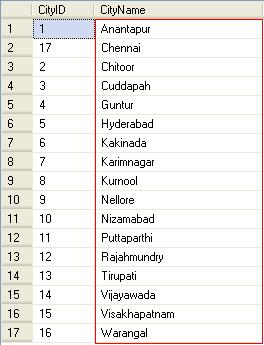
SELECT [CityName] FROM [DBO].[City] WITH (NOLOCK);

Output would be :

Let us say, we need to check how many FEMALE employees are there in each city. For this we normally use GROUP BY clause.

SELECT
              C.[CityName] AS ‘City Name’,
              COUNT(E.EmpID) AS ‘Female Count’
FROM
              [DBO].[Employee] AS E WITH (NOLOCK) INNER JOIN [DBO].[City] AS C WITH (NOLOCK) ON E.[CityID] = C.[CityID]
WHERE
              E.[Sex] = 0
GROUP BY
              C.[CityName]
ORDER BY
              C.[CityName]
GO

Output would be :

When you execute the above statement will give us only the city names which are having female employee. It’s because we are filtering only FEMALE employee in the WHERE CLAUSE.

But, we need to list all the city names even FEMALE employees are not existing. In this situation GROUP BY ALL is very useful.

SELECT
             C.[CityName] AS ‘City Name’,
             COUNT(E.EmpID) AS ‘Female Count’
FROM
             [DBO].[Employee] AS E WITH (NOLOCK) INNER JOIN [DBO].[City] AS C WITH (NOLOCK) ON E.[CityID] = C.[CityID]
WHERE
             E.[Sex] = 0
GROUP BY ALL
            C.[CityName]
ORDER BY
            C.[CityName]
GO

Output would be :

From the above result set, we can understand how GROUP BY ALL is used efficiently.

NOTE :

1. We cannot specify ALL with the CUBE or ROLLUP operators.
2. GROUP BY ALL is not supported in queries that access remote tables if there is also a WHERE clause in the query.

SQL Server : T-SQL features in SQL Server 2008 (Part 1)

Welcome to SQL Server 2008 T-SQL features buddy 🙂

Assign Default Values to Local Variables in SQL Server 2008

SQL Server 2008 allow us to assign a default value to a Local Variable when we DECLARE a variable itself instead of using separate SET statement :

DECLARE @iTest AS INT = 100, @vText AS VARCHAR(25) = ‘SQL Server 2008’;

SELECT @iTest AS Result1,@vText AS Result2;

The same logic can be done in SQL Server 2005 as below:

DECLARE @iTest AS INT, @vText AS VARCHAR(25);

SET @iTest = 1;

SET @vText = ‘SQL Server 2005’;

SELECT @iTest AS Result1,@vText AS Result2;

Compound assignment operators in SQL Server 2008

SQL Server 2008 introduces new 5 compound assignment operators :-

(a) += (plus equals)

(b) -= (minus equals)

(c) *= (multiplication equals)

(d) /= (division equals)

(e) %= (modulo equals)

These operators can be used in the SET clause of an UPDATE statement Or in a SET statement that assigns values to variables as shown below :

DECLARE @iTest AS INT = 10;

SET @iTest += 15;

SELECT @iTest AS Result1;

The result would be 25.

The same logic can be done in SQL Server 2005 as below:

DECLARE @iTest AS INT;

SET @iTest = 10;

SET @iTest = @iTest + 15;

SELECT @iTest AS Result1;

You could see in SQL Server 2008 directly we assigned 10 as default value to a Variable (@iTest)and added 15 to @iTest directly, whereas in SQL Server 2005 first declared a Variable and assigned 10 as initial value using SET statement and again added 15 to @iTest variable.

Using the above features, we can reduce some unnecessary code to improve the performance.

Keep follow my blog for other new SQL Server 2008 T-SQL features……. 🙂

SQL Server : Combining multiple DML (Data Manipulation Language) actions (INSERT, DELETE, UPDATE) into single SQL Statement using MERGE in SQL Server 2008

One of my SQL buddy got confused yesterday about MERGE functionality in SQL Server 2008, he rang me up and asked MERGE is used for merging multiple records into single?

I said NO, this confusion is not only with him which has with many SQL buddies. I have finally clarified his doubt with some examples which I would like to share with you all. 🙂

First of all, what is MERGE statement in SQL Server 2008?

MERGE is combining multiple DML (INSERT, UPDATE, DELETE) actions statements into single action, which improves performance and simplifying transactions. (This option is called UPSERT in other products like ORACLE, Sybase, DB2 etc.,).

Now, Let me explain, how to use MERGE statement instead of our normal DML statements. 🙂

We will assume that we have a table with the following records.

Sample table creation script :

CREATE TABLE [DBO].[Employee]
(
[EmpCode] VARCHAR(10) NOT NULL,
[EmpName] VARCHAR(100) NOT NULL,
[Active] BIT NOT NULL CONSTRAINT DF_Employee_Active DEFAULT 1, –1. ACTIVE 0. INACTIVE
CONSTRAINT [PK_Employee] PRIMARY KEY ([EmpCode]),
CONSTRAINT [CK_EEmployee_Active] CHECK ([Active] IN (0,1))
)
GO

Sample records creation script :

INSERT INTO
[DBO].[Employee] ([EmpCode],[EmpName])
VALUES
(‘E001′,’Sudhar’),
(‘E002′,’Siva’),
(‘E003′,’Areef’),
(‘E004′,’Jonathan’),
(‘E005′,’Matt’),
(‘E006′,’Mahesh’)
GO

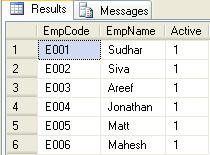
SELECT [EmpCode],[EmpName],[Active]  FROM  [DBO].[Employee] WITH (NOLOCK)
GO

After executing the above scripts, the output would be :

Performing INSERT and UPDATE operations on a table using single MERGE statement :

Let us see, how to use MERGE statement to update a record. For example I am going to rename the employee’s name for employee  ‘E003’.

DECLARE @Input_EmpCode VARCHAR(10) = ‘E003’
DECLARE @Input_EmpName VARCHAR(100) =‘Areef Ali Sheik’
DECLARE @Input_Active BIT = 1

MERGE INTO [DBO].[Employee] AS [Target]
USING (VALUES (@Input_EmpCode,@Input_EmpName,@Input_Active))
AS [Source] (New_EmpCode,New_EmpName,New_Active)
ON [Target].[EmpCode] = [Source].[New_EmpCode]
WHEN MATCHED THEN
UPDATE SET [EmpName] = [Source].[New_EmpName],[Active] = [Source].[New_Active]
WHEN NOT MATCHED BY TARGET THEN
INSERT ([EmpCode],[EmpName],[Active]) VALUES ([New_EmpCode],[New_EmpName],[New_Active]);

The output would be :

MERGE statement in Stored Procedure :

CREATE PROCEDURE [DBO].[STP_Employee]
(
@Input_EmpCode VARCHAR(10) , @Input_EmpName VARCHAR(100),
@Input_Active BIT = 1
)
AS

SET NOCOUNT ON;

MERGE INTO [DBO].[Employee] AS [Target]
USING (VALUES (@Input_EmpCode,@Input_EmpName,@Input_Active))
AS [Source] (New_EmpCode,New_EmpName,New_Active)
ON [Target].[EmpCode] = [Source].[New_EmpCode]
WHEN MATCHED THEN
UPDATE SET [EmpName] = [Source].[New_EmpName],[Active] = [Source].[New_Active]
WHEN NOT MATCHED BY TARGET THEN
INSERT ([EmpCode],[EmpName],[Active]) VALUES ([New_EmpCode],[New_EmpName],[New_Active]);

GO

Execute the below scripts to INSERT or UPDATE records :
EXEC [DBO].[STP_Employee] @Input_EmpCode = ‘E003′,@Input_EmpName =’Areef Ali Sheik’, @Input_Active =1
GO

EXEC [DBO].[STP_Employee] @Input_EmpCode = ‘E007′,@Input_EmpName =’Sathish’, @Input_Active =1
GO

Output would be :

Displaying affected records using MERGE OUTPUT clause statement :

DECLARE @Input_EmpCode VARCHAR(10) = ‘E008’
DECLARE @Input_EmpName VARCHAR(100) =‘Sivakumar Vellingiri’
DECLARE @Input_Active BIT = 1

MERGE INTO [DBO].[Employee] AS [Target]
USING (VALUES (@Input_EmpCode,@Input_EmpName,@Input_Active))
AS [Source] (New_EmpCode,New_EmpName,New_Active)
ON [Target].[EmpCode] = [Source].[New_EmpCode]
WHEN MATCHED THEN
UPDATE SET [EmpName] = [Source].[New_EmpName],[Active] = [Source].[New_Active]
WHEN NOT MATCHED BY TARGET THEN
INSERT ([EmpCode],[EmpName],[Active]) VALUES ([New_EmpCode],[New_EmpName],[New_Active])
OUTPUT $action as ‘Action’,Inserted.EmpCode,Inserted.EmpName,Inserted.Active,Deleted.EmpName as Previous_EmpName,
Deleted.Active as Previous_Active,Getdate() as Modified_Date;

Recording DML changes into history table using MERGE OUTPUT clause statement :

History table creation script :

CREATE TABLE [DBO].[EmployeeHistory]
(
[Action] VARCHAR(10) NOT NULL,
[EmpCode] VARCHAR(10) NOT NULL,
[EmpName] VARCHAR(100) NOT NULL,
[Active] BIT NOT NULL,
[Previous_EmpName] VARCHAR(100) NULL,
[Previous_Active] BIT NULL,
[Modified_Date] DATETIME NOT NULL,
[Modified_By] NCHAR(100) NOT NULL
)
GO

For this example, I am going to update one existing employee and inserting one new employee record.

Updating existing employee :

DECLARE @Input_EmpCode VARCHAR(10) = ‘E002’
DECLARE @Input_EmpName VARCHAR(100) =’Sivakumar Vellingiri’
DECLARE @Input_Active BIT = 1

MERGE INTO [DBO].[Employee] AS [Target]
USING (VALUES (@Input_EmpCode,@Input_EmpName,@Input_Active))
AS [Source] (New_EmpCode,New_EmpName,New_Active)
ON [Target].[EmpCode] = [Source].[New_EmpCode]
WHEN MATCHED THEN
UPDATE SET [EmpName] = [Source].[New_EmpName],[Active] = [Source].[New_Active]
WHEN NOT MATCHED BY TARGET THEN
INSERT ([EmpCode],[EmpName],[Active]) VALUES ([New_EmpCode],[New_EmpName],[New_Active])
OUTPUT $action as ‘Action’,Inserted.EmpCode,Inserted.EmpName,Inserted.Active,Deleted.EmpName as Previous_EmpName,
Deleted.Active as Previous_Active,Getdate() as Modified_Date,SYSTEM_USER AS Modified_User INTO [EmployeeHistory];

Creating new employee :

DECLARE @Input_EmpCode VARCHAR(10) = ‘E009’
DECLARE @Input_EmpName VARCHAR(100) =’Krishna Priya’
DECLARE @Input_Active BIT = 1

MERGE INTO [DBO].[Employee] AS [Target]
USING (VALUES (@Input_EmpCode,@Input_EmpName,@Input_Active))
AS [Source] (New_EmpCode,New_EmpName,New_Active)
ON [Target].[EmpCode] = [Source].[New_EmpCode]
WHEN MATCHED THEN
UPDATE SET [EmpName] = [Source].[New_EmpName],[Active] = [Source].[New_Active]
WHEN NOT MATCHED BY TARGET THEN
INSERT ([EmpCode],[EmpName],[Active]) VALUES ([New_EmpCode],[New_EmpName],[New_Active])
OUTPUT $action as ‘Action’,Inserted.EmpCode,Inserted.EmpName,Inserted.Active,Deleted.EmpName as Previous_EmpName,
Deleted.Active as Previous_Active,Getdate() as Modified_Date,SYSTEM_USER AS Modified_By INTO [EmployeeHistory];

Displaying records from history table :

SELECT
[Action],[EmpCode],[EmpName],[Active],[Previous_EmpName],[Previous_Active],[Modified_Date],[Modified_By]
FROM
[EmployeeHistory] WITH (NOLOCK)
GO

As we all know that the above functionality can be achieved using TRIGGERS, but MERGE OUTPUT made us very simple and improves the performance too. 🙂

Note :
(a). This example will work only in SQL Server 2008 and above versions.
(b). Target Table : The table or view against which the data rows from SOURCE TABLE are matched based on search condition. The target is the target of any insert, update, or delete operations specified by the WHEN clauses of the MERGE statement. 
(c). USING : Specifies the data source that is matched with the data rows in target table based on merge search condition. The result of this match dictates the actions to take by the WHEN clauses of the MERGE statement. Table source can be a remote table or a derived table that accesses remote tables.
(d). OUTPUT : Returns a row for every row in TARGET TABLE that is updated, inserted or deleted.

For additional information, please refer http://technet.microsoft.com/en-us/library/bb510625.aspx

SQL Server : Displaying records with Sequential Numbering / Group wise Sequential Number / specific range of records in SQL Server using ROW_NUMBER() function.

One of my SQL buddy called yesterday and asked me, how to display the records with Serial Numbers in SQL Server.  I gave the solution over phone which I want to share with you guys too. 🙂

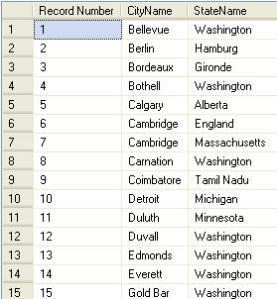
Assume that we have a table with the following records.


How to display the records with record number :

Now, let me show you how to display the same records with Serial Number (Record Number) using ROW_NUMBER() function.

SELECT
ROW_NUMBER() OVER (ORDER BY [CityName] ASC ) AS ‘Record Number’,
[CityName],[StateName]
FROM
[DBO].[City] WITH (NOLOCK)
GO

You can see the records with serial number as below.

How to display group wise record number:

In a similar way, we can reset the record numbers based on group. Here, I am going to display the record numbers based on StateName wise.

SELECT
ROW_NUMBER() OVER ( PARTITION BY [StateName] ORDER BY [CityName]) AS ‘Record Number’, [CityName],[StateName]
FROM
[DBO].[City] WITH (NOLOCK)
ORDER BY
[StateName],[CityName]

Now,  see the group wise record number result below.

How to display specific range of records from the result set:

Sometimes, It may require to display the records for some specific range. Let us say, I want to display the records range between 5 to 10.

WITH CTECity (RecordNumber,CityName, StateName)
AS
(SELECT
ROW_NUMBER() OVER (ORDER BY [CityName] ASC ) AS RecordNumber,
[CityName],[StateName]
FROM
[DBO].[City] WITH (NOLOCK)
)
SELECT
[CityName],[StateName]
FROM
CTECity
WHERE
[RecordNumber] BETWEEN 5 AND 10
GO

Now, See the result below and you can compare the result with my first example.


Note :

(a). This example will work only in SQL Server 2005 and above versions.
(b). ROW_NUMBER() function returns the sequential number of a row within a partition of a result set, starting at 1 for the first row in each partition.
(c). For my last example, I used Common Table Expression (CTE) which was introduced in SQL Server 2005 and it’s a “temporary result set” that exists only within the scope of a single SQL statement.

Convert SQL Server Table Data Into Comma Separated Values (CSV) Format

–=============================================
–Creating a table to store some sample records
–=============================================

CREATE TABLE [DBO].[MEmployee]
(
[EmpCode] INT IDENTITY (1,1) NOT NULL,
[EmpName] VARCHAR(100) NOT NULL,
[Active] BIT NOT NULL CONSTRAINT DF_MEmployee_Active DEFAULT 1, –1. ACTIVE 0. INACTIVE
CONSTRAINT [PK_MEmployee] PRIMARY KEY ([EmpCode]),
CONSTRAINT [CK_MEmployee_Active] CHECK ([Active] IN (0,1))
)
GO

–==================================================
–Inserting some test records into [MEmployee] Table
–==================================================

INSERT INTO [DBO].[MEmployee] ([EmpName],[Active]) VALUES (‘Siva’,1)
GO
INSERT INTO [DBO].[MEmployee] ([EmpName],[Active]) VALUES (‘Parvathi’,1)
GO
INSERT INTO [DBO].[MEmployee] ([EmpName],[Active]) VALUES (‘Surya’,1)
GO
INSERT INTO [DBO].[MEmployee] ([EmpName],[Active]) VALUES (‘Satya’,1)
GO
INSERT INTO [DBO].[MEmployee] ([EmpName],[Active]) VALUES (‘Ajay’,0)
GO

–======================================
–Selecting the records from [MEmployee]
–======================================

SELECT * FROM [DBO].[MEmployee]
GO

The output would be :

–====================================================
–Generating the records in the Comma Separated Format
–====================================================

DECLARE @Result VARCHAR(MAX)
–==============================================
–To display the field heading in the first row
–==============================================
SET @Result = ‘EmpCode,EmpName,Active’
SELECT
@Result = COALESCE(@Result + ‘|’,”) + CONVERT(VARCHAR(10),[EmpCode]) +’,’+[EmpName]+’,’+CONVERT(VARCHAR(2),[Active])
FROM
[DBO].[MEmployee]

PRINT @Result

See the result as shown below:

Note :
1. COALESCE() returns the first NOTNULL expression among its arguments.
2. “|” is used for row delimiter.

How to Call External Applications like MS Excel, MS Word etc., from SQL Server Management Studio (SSMS)

Many of us are thinking that SQL Server Management Studio (SSMS) is used only for database administration, but also can be used to call the external applications like MS Excel, MS Word, Calculator etc.,

For this example, let me explain, how to call MS Excel from SSMS.

Step 1 : Open SQL Server Management Studio(SSMS)

Step 2 : Go to Tools –> External Tools Menu (As shown below)

Step 3 :

(i) In the Title text box, type the name you want to appear in the Menu contents List. eg. “Excel”

(ii) In the Command text box, type the program name. Include the path to the executable file.
For example “C:\Program Files\Microsoft Office\Office12\EXCEL.EXE”

(iii) In the Arguments text box, type the program arguments if necessary.

(iv) In the Initial directory text box, type the program’s initial directory if necessary.

(v) Click OK

Go to Tools Menu, Now you can see “Excel” menu is added (As shown below).

Click and see the magic, the similar way you can add other your frequently used applications in SSMS. I hope this will help you to save your valuable time.