
I have so exciting news! Microsoft has released SQL Server 2012 RTM (Code name “Denali”) on March 6 for manufacturing and download the evaluation edition from http://www.microsoft.com/download/en/details.aspx?id=29066
As my laptop is 32-bit system, so I have downloaded the following files from the above link. Likewise, you can download the files for 64-bit system(x64) too. 🙂 Finally, check your system requirements from the same link.
ENU\x86\SQLFULL_x86_ENU_Core.box
ENU\x86\SQLFULL_x86_ENU_Install.exe
ENU\x86\SQLFULL_x86_ENU_Lang.box
After downloading the above files, your system will look like below:

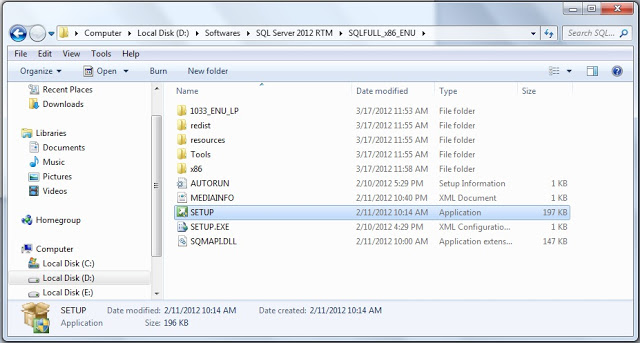
Double click the “SQLFULL_x86_ENU_Install.exe”, it will extract the required files for installation in the “SQLFULL_x86_ENU” folder as shown below:

Click the “SQLFULL_x86_ENU” folder and double click “SETUP” application.
Checking your system requirements for installation.

When you see “SQL Server Installation Center” screen, it means that your system configuration is perfect for “Denali” installation. 🙂

Click installation from the left pane and select “New SQL Server stand-alone installation or add features to an existing installation”.

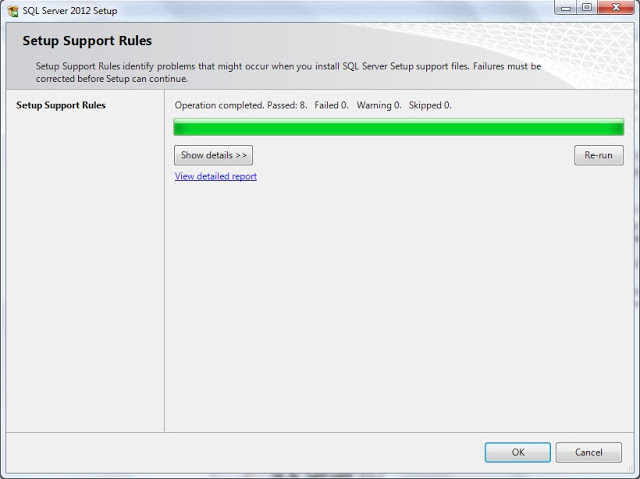
In the “Setup Support Rules” Click “OK” button when you have failed 0. Otherwise fix the issue and click “Re-run” button.
Here, I left default edition “Evaluation”, but you can also choose “Express” edition from the drop down list. (Leave the product key as of now, later you can convert to licensed version at any time, refer the above link.

Press “Next” button.

Select the “I accept the license terms” and click “Next” button.
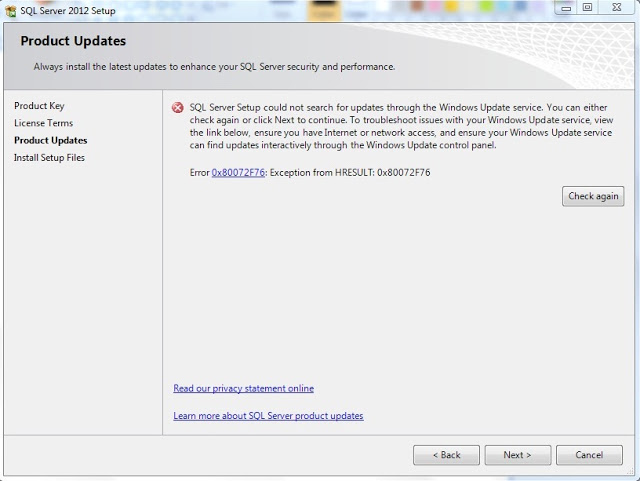
I have installed in “Offline” mode, So I got the above error message otherwise, it does windows update automatically and will continue the process. 🙂
Press “Next” button.
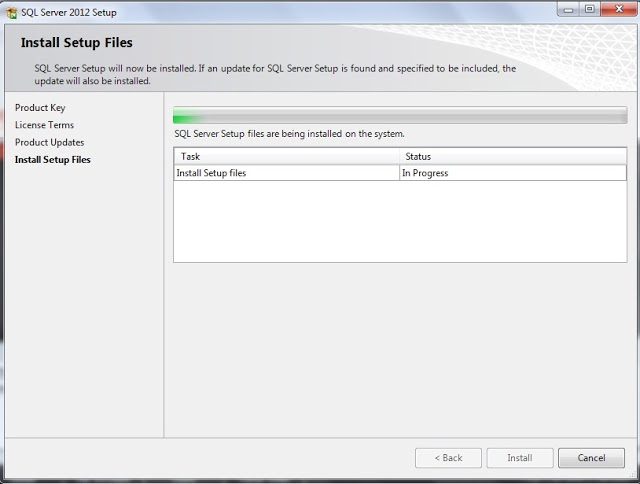
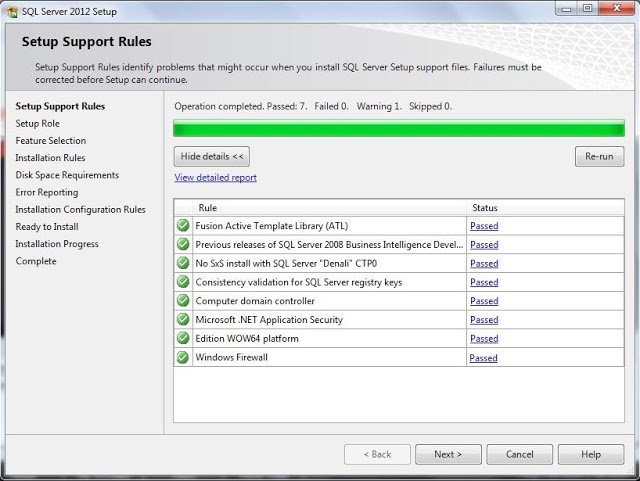
Press “Next” button, if all status are passed. Otherwise fix the issue and press “Next” button.

I left the default feature “SQL Server Feature Installation”, if you do not want to change the option then press “Next” button.

Select the features and change the “Shared feature directory” if you want, otherwise press “Next” button.
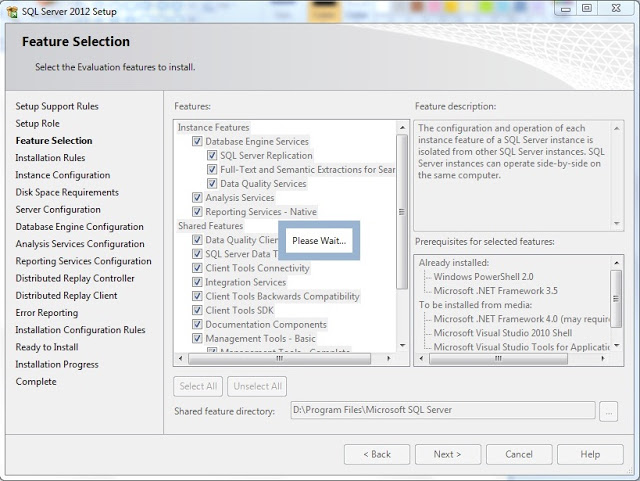

Press “Next” button if failed count is 0.

As I have already 2 instances, so I have selected “Named Instance” and given the instance (server) name. You can change “Instance root directory” if you want. Otherwise, press “Next” button.

It will not allow, if you do not have sufficient space in the disc. Press “Next” button.

You can change the “Startup Type” for SQL services in the tab. Which also can be done in the Control Panel “Services” after installation.
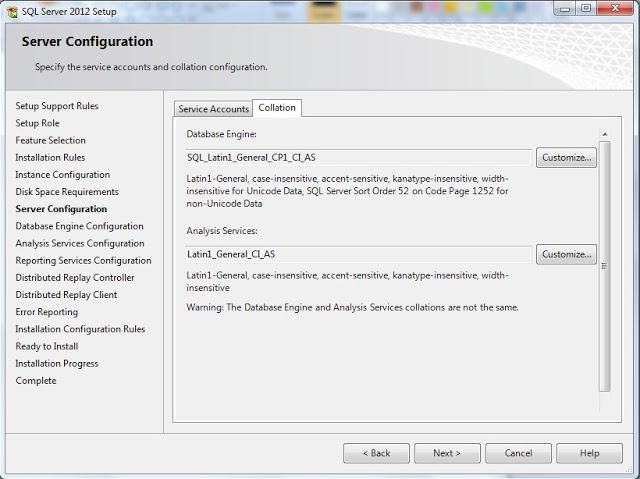
Change the “Collation” if you want, otherwise Press “Next” button.

Choose the authentication mode and specify the “Administrator” user. Here, I have selected “Add Current User”. Also, you can change the “Data Directories” and enable “FILESTREAM” if you want , otherwise Press “Next” button.

You can change the Analysis Services “Server Mode” and “Administrator” user. Here, I have selected “Add Current User”. Also change the “Data Directories” if you want , otherwise Press “Next” button.
Note : You can select only one server mode to use: “Multidimensional and Data Mining Mode” or “Tabular Mode”. If you want both, you need to run the setup again after the first instance setup. Refer Books online.

Here, you need to choose “Reporting Services Native Mode” and press “Next” button.
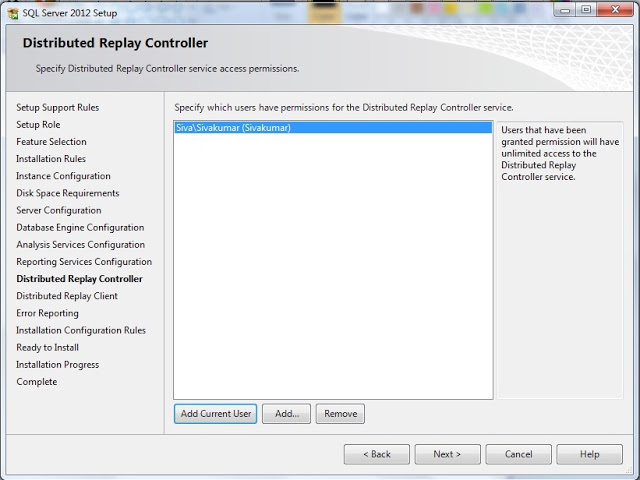
“Distributed Replay Controller” service feature is new in SQL Server 2012, here specify the user who should have permission to use this service. Press “Next” button.
Note : Distributed Replay feature helps you assess the impact of future SQL Server upgrades.
Refer http://msdn.microsoft.com/en-us/library/ff878183(v=sql.110).aspx

Specify the Controller Machine name which should have “Distributed Replay Controller” service. Also you can change the working directory and Press “Next” button.
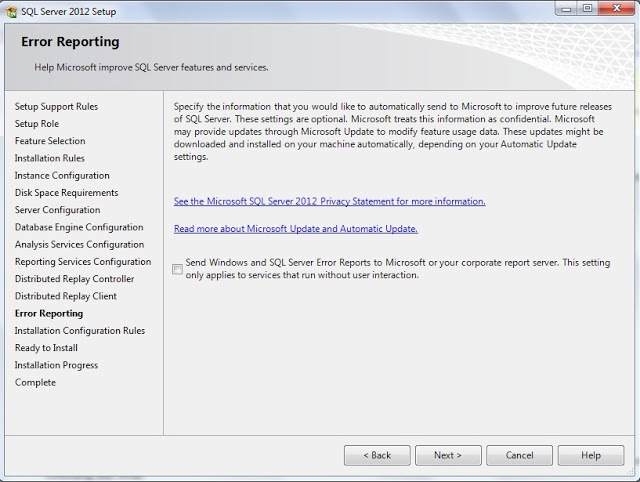

Press “Next” button, if failed count is 0.
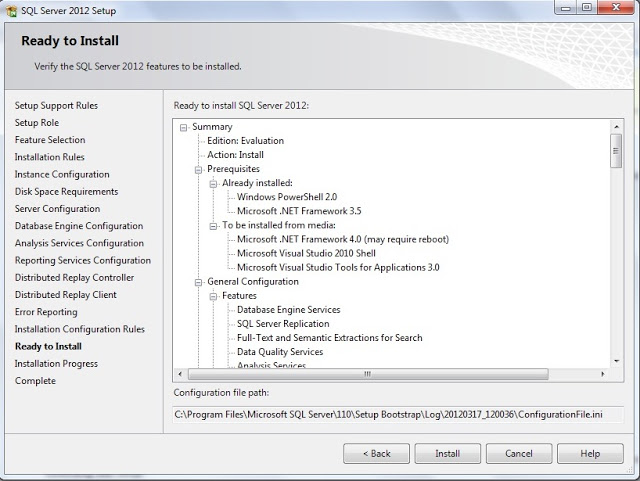
Here, you can find the list of “SQL Server 2012” features which will be installed. If you would have missed to enable any features, click “Back” button and enable. Otherwise press “Install” button to proceed.
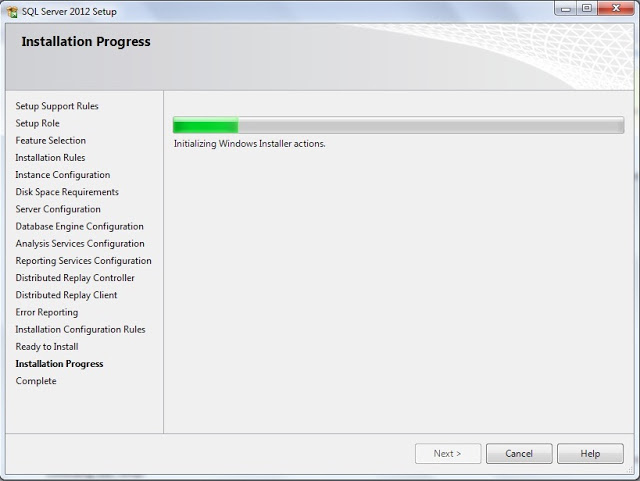
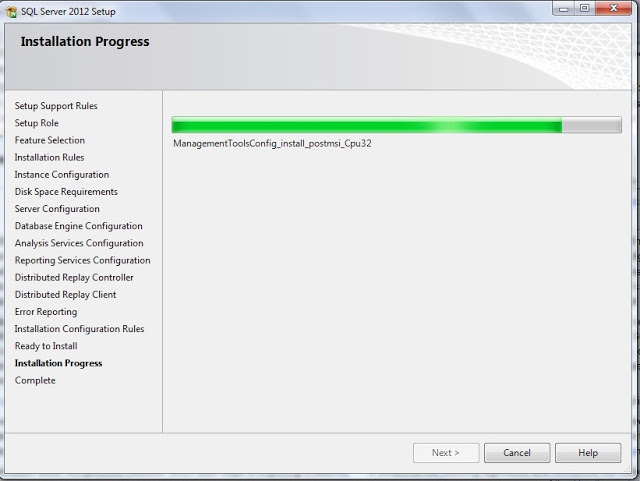
You can see installation progress. Press “Cancel” button, if you want to stop the installation.

After the successful installation, your screen should look like below :

Wow, you have successfully installed SQL Server 2012 and to confirm the successful of installation from the screen, you can find the “Succeeded” for all the features and refer summary log file for further info.
Press “Close” button.
Now, you can play with SQL Server 2012 features.
Go to “SQL Server 2012” menu and click “SSMS”.
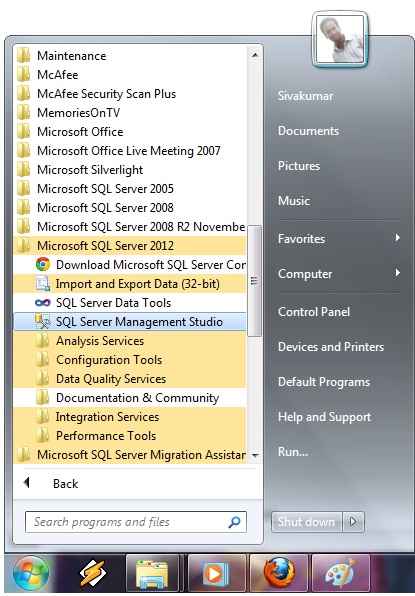


Select appropriate SQL Server 2012 instance and authentication mode and click “Connect” button.

Now, you are in SQL Server 2012 management studio. 🙂

Now, you can right click and change the “New Vertical Tab Group”.

Write your favorite query and execute. All the very best for your learning 🙂
I hope, this article would have guided you to install SQL Server 2012 (“Denali”).
 The voice of the SQL by Sivakumar Vellingiri
Thanks Siva…
You made it very easy to install “Denali” 🙂
@Siva
Thank you!
We are expecting articles on sql server 2012 to use new features as well.
Hope they will come soon….
Thanks Siva!….. I Appreciate it. I heard that power view is integrated with SQL Server 2012(Denali) is that true?, if so where can i get that & how to use that. please Teach me.
@ Ananth,
Sure, will publish one article on power view…. soon 🙂
Thanks
Siva
@ Ananth,
Sure, will publish one article on power view…. soon 🙂
Thanks
Siva
Good post,
Siva… it is very useful information to all.
Thanks siva.
Good Post,
Thank u so much Shiva
its help a lot.
Thank u Siva;
it was very useful to everyone.
Thank you for putting this together, just finished my install – worked perfectly.
nice post
Thank you so much! It was really self explanatory.
thanking Y 🙂 U
Its help full for me .
Good Post,
Thank u so much Shiva it very useful information to all.
Hi Siva,
In between the installation of SQL Server 2012 Developement Edition on my Windows 7 – 64bit, i got an error as 'Incorrect Function'.
And after the installation completes, these are list of files which got failes:
1. Reporting Service – Native
2. Database Engine Services
3. Data Quality Services
4. Full-Text and Semantic extractions for search.
5. SQL Server Replication
Cause of which the SSMS is not running, please help me out.
Although i have SQL Server 2008 r2 on the same C: drive.
Siva,
Thanks for your post.Really it helped lot.Could you please tell what are the additional features of 2012 compared to 2008 R2.
Fantastic article ! You havemade some very astute statements and I appreciate the the effort you have put into your writing. Its clear that you know what you are writing about. I am excited to read more of your sites content.
http://www.sqlservermasters.com/
Thanks for sharing such a nice information .
Fine Waseem!
Thank you so much
Thanks Siva..
Nice post very helpful
dbakings
thanks siva
thanks siva
thanks siva
In the installation step am getting an error
@ Product key
error message: “Incorrect function”
Can anyone help me out
Hi Ramakrishna Kirthi,
How are you installing the SQL Server by CD or dump?
This problem might have occurred due to the installation files are corrupted.
Please try to use other media for the installation.
Thanks
Siva
Thank U very much for the step by step installation process.
it would be great if you can publish by point wise the pre-requisites and points to check before installtion and post installation.
-Thanks,
Vino
Took me time to read all the comments, but I really enjoyed the article. It proved to be Very helpful to me and I am sure to all the commenters here! Its always nice when you can not only be informed, but also entertained! Im sure you had fun writing this article.
Hadoop training
Thank you for putting this together, just finished my install – worked perfectly.
Thank you Rohit !
Hi,nice method for Installing Sql Server 2008 Software.Thanks for your help..
-Aparna
Theosoft
Thank you Aparna !
Thanks Siva 🙂
Thank you…it was very helpful
Wow this is very useful. Thankz
thanks siva it is very helpful article.
Thank you Rashid !
Thanks Boss
Thanks for your information…it was very helpful.
it's great…. thank you.
Hi,
I m getting error as “Wait on the Database Engine recovery handle failed!! SQL Server 2012 installation”. Can you please help me out? Thanks
Hi Lara,
Just proceed the installation with errors and refer http://blogs.msdn.com/b/sqljourney/archive/2012/03/16/sql-2008-r2-setup-fails-with-quot-wait-on-the-database-engine-recovery-handle-failed-quot.aspx
Please let me know, still if you have any issue.
Thanks
Siva
I installed but not able to connect the Database Engine. As it is failed to install 😦
I also take a look of the following link- at step 13.f — I cannt change the name to NT AUTHORITY\LOCAL SERVICE
http://www.bu.edu/csmet/files/2013/01/SQL-Server-2012-Installation-Guide.pdf
I found something here also —
http://stackoverflow.com/questions/17613094/wait-on-the-database-engine-recovery-handle-failed-sql-server-2012-installatio/19379173#19379173
Hi Siva
I Have the Diploma for Information Technology and now am working to the Company in South Africa.I Work as IT Technical Ass I never did SQL server but Why is important to PC.
thanks sivA beause o you i am able to install easily
You are welcome Aatish 🙂
Hi,
Please refer this link http://en.wikipedia.org/wiki/Microsoft_SQL_Server
This may help you to understand why SQL Server is required.
Thanks
Siva
can't find server name…
Thank you very much Siva, Your article really helped me a lot while installing my SQL Server 2012.
Thank you for the Steps.. 🙂